
This article explains how to set up monitoring on SAFR Server to alert if any error conditions that may be preventing proper operation.
Enablew Monitors
Go to Set Feed Defaults as follows: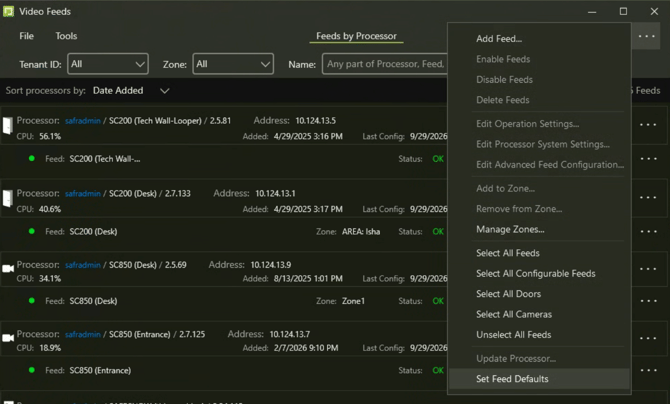
Click “+” next to the Monitoring section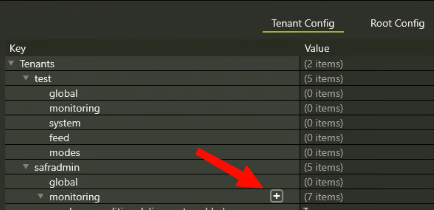
Select the items you want to monitor. Leave subject and message unselected unless you want to customize these.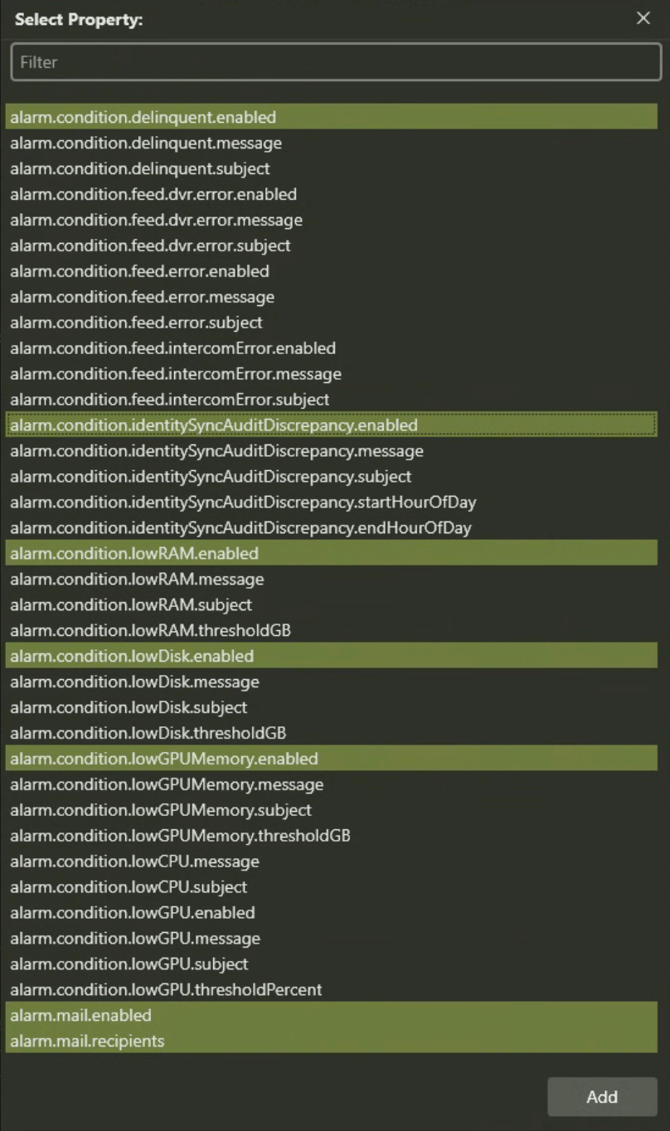
Click Add. These will be added to the Config as shown below.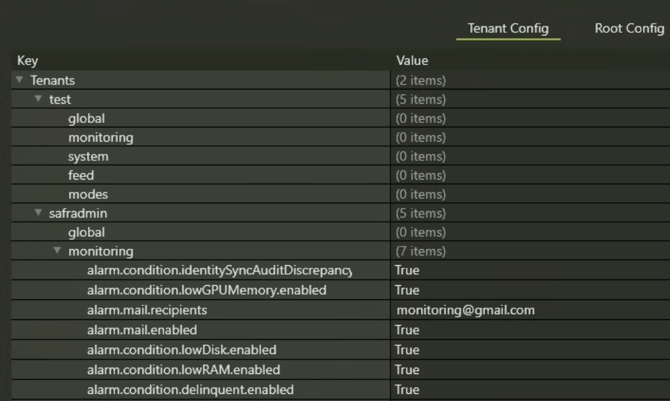
Note: Make sure to set “alarm-enabled’ attribute to True (by default it is False)
Click Apply at bottom of window.
Set up Email SMTP
In SAFR Desktop: Go to Tools > System Configuration. Or in SAFR Server Web Console open https://localhost:8091
Scroll to "Notification Services Configuration" and check “Set up SMPT Email Service” as follows: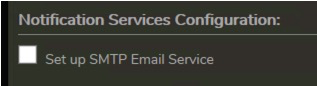
Complete the email configuration and click apply.
Note: Email account must support single factor authentication login. If using gmail, this is done by creating an app password.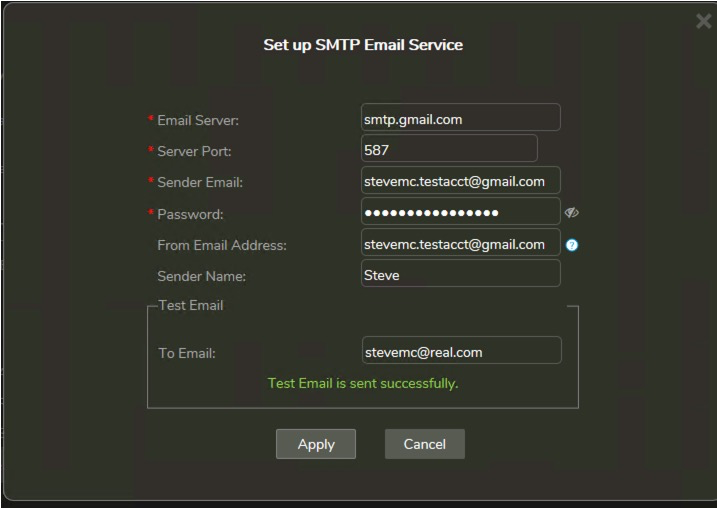
When ready, click apply. If all goes well you will see the green text to show success. Else it will show error.
There is a bit more help on setting up SMTP in online docs here:
https://docs.real.com/safr/common/server/safrdocs/Status_Page.html
To test it out, turn a camera off to trigger a feed delinquent warning. You should see the feed go into error status in the Video Feeds window and then an email should be sent.