
Recommended Saved Event Filters
Saved event filters make it easy for operators to quickly identify important events without manually searching through the event log.
1. Known Cardholders Who Are Denied Access
Create a saved filter that displays events where a known cardholder is denied access.
Benefits
- Identifies badge or access control issues.
- Help detect expired credentials or permission problems.
- Allow administrators to quickly investigate unexpected denials.
Example:
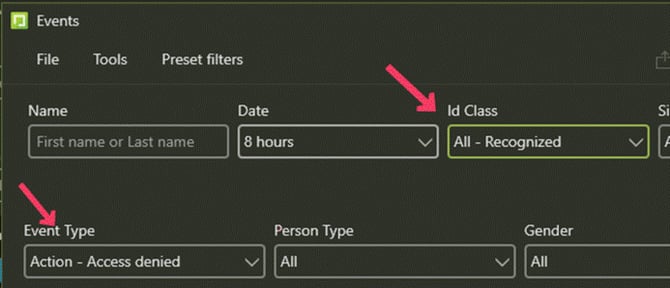
2. Unrecognized People Due to Outdated Photos
Create a saved filter for events where known individuals are not successfully recognized.
Benefits
- Identifies users whose enrollment photos should be updated.
- Improves overall recognition accuracy.
- Helps maintain a healthy enrollment database.
Note: This filter is most effective when operators are familiar with the staff or regular users of the system.
Example:
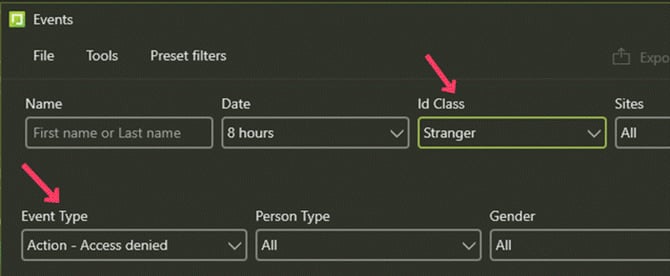
Configure the SMTP Email Service
Email notifications require an SMTP server to be configured before monitoring alerts can send email.
Configure SMTP
For the SAFR Web Console (Desktop Client and Server):
- Open the Web Console.
- Navigate to the Status page.
- In the Configuration section, select Set up SMTP Email Service.
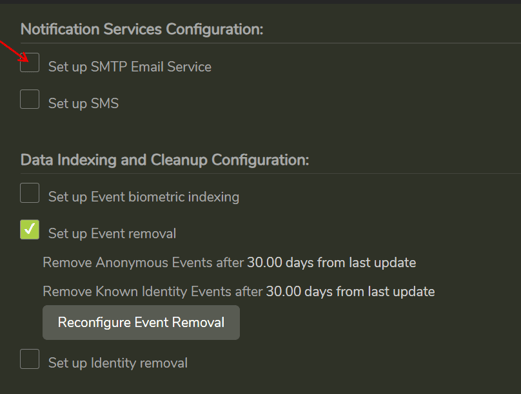
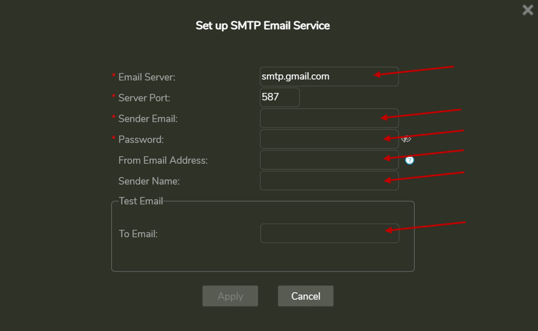
- Enter the required SMTP configuration information:
- SMTP server address
- Server port
- Sender email address
- Sender credentials
- Configure the Test Email settings.
- Click Apply.
- Verify that the specified email address receives the test email.
Tip: The test email confirms that the SMTP server settings are correct before monitoring alerts are enabled.
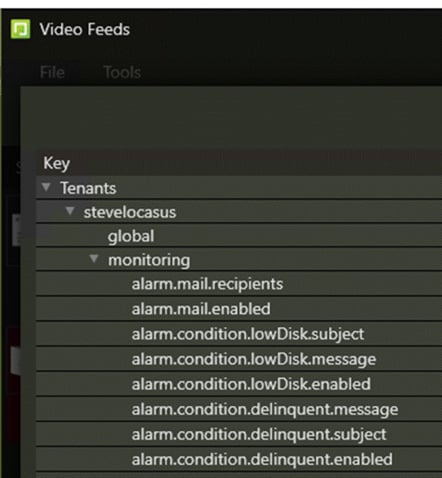
Recommended Monitoring Alerts
Customers should configure monitoring alerts to detect system health issues and receive notifications when intervention may be required.
When configuring email notifications, remember to:
- Enable alarm.mail.enabled
- Configure one or more email recipients
Important: Email notifications are disabled by default.
Example:
Best Practices
For most customer deployments, we recommend:
- Create a saved filter for denied cardholders.
- Create a saved filter for recognition failures caused by outdated enrollment photos.
- Configure monitoring alerts with email notifications enabled.
- Verify that alarm.mail.enabled is enabled and recipients are configured.
- Avoid enabling feed error alerts unless they have been validated as useful in the customer's environment.
- Periodically review saved filters and monitoring alerts to ensure they remain relevant as the deployment evolves.
Summary
A small amount of monitoring configuration can significantly improve day-to-day operations. Saved event filters help operators quickly identify common issues, while thoughtfully configured monitoring alerts notify administrators of actionable system events without overwhelming them with unnecessary notifications.