
How to link Jira and FD
Below describes how to create a linkage between Jira and FD for both new Jira issues and existing Jira issues. Either way, Jira and FD tickets should have following fields after linkage:
JIRA Fields
|
JIRA Field |
FD Value |
Example |
|---|---|---|
|
External id |
<FD Ticket URL> |
 |
|
Customers |
<FD Account name> |
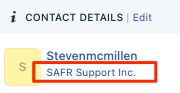 |
FD Fields
|
FD Field |
FD Value |
Example |
|---|---|---|
|
tag |
"JIRA" (in addition to the JIRA Ticket ID which is automatically added by linking) |
|
| status | "Waiting on Engineering" | 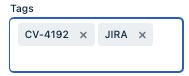 |
How to Link Issue
- From Freshdesk, Open customer ticket and expand Jira App in right panel
- Click "Link Issue" button
- Search by either subject or ticket id.
- Search by subject: Scroll the list of results and click the item to link
- Search by id: Only works with exact match. Will automatically link what is found
- Get link of FD ticket and paste into "external id" field in JIRA (see "Show more fields" link on right in JIRA)
- FD will add the JIRA Ticket # to the tags field in FD Ticket
- Add "JIRA" to the tags (needed for search)
- Add External ID and Customers to JIRA as noted above
How to Create Issue
- From Freshdesk, Open customer ticket and expand Jira App in right panel
- Click "Create Issue" button
- Enter following (click button in upper right if not all fields showing)
- Issue Type (Defaults to "Task" so make sure to change to "Bug")
- Update summary and description
- Don't just accept what customer typed as subject.
- MAKE SURE its worded to dev clearly understands bug.
- Set Reporter to yourself
- Set Priority (Defaults to PO)
- External ID (copy FD Ticket link and paste here)
- Customers (Copy Account Name for FD customer and paste here)
- Make sure you use exact string. You may need to open new FD window to get it
- Leave Assignee blank.
- Click "Create Issue"
- Add "JIRA" to the tags in FD
Jira Ticket Lifecycle
- Set to FD Ticket "Waiting on Engineering" after creating Jira Ticket.
- Note: If you forget, the FD Ticket is set to "Waiting on Engineering" when Jira ticket is Opened
- When Jira ticket marked "Resolved", FD ticket will be set to "Resolved in Jira" and Agent assigned to ticket will be notified
- Perform any validation needed at this time. Leave ticket in {{ticket.status}} status.
- Create a Todo item in the ticket and set the reminder date on the Todo for when you expect SAFR to be released (maybe a couple of days after). See following screenshot for how:
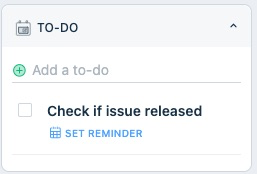
- If needed, set yourself as a watcher on the Jira ticket so you can see when it is closed. No update to Freshdesk will occur when Jira ticket is closed.
- IF Jira ticket is put into "Reopened" status, FD ticket will be set to "Open" and Agent assigned to ticket will be notified. No need to act at this time.
- When the Todo triggers,check that the issue was released and take following actions:
- Mark ticket "Resolved" (note: customer will get email)
- Send additional message to the customer explaining the situation and ask them to verify the fix.