SAFR allows for distinguishing between identical twins by adding a 2nd factor for each of the twins. When configured this way, SAFR will first match the person in view of the camera with all matching stored identities, then it will use a 2nd factor, if configured, to identify which person is attempting to gain access. For most users, the default access mode will apply. Only those identified as needing a 2nd factor will be prompted for the 2nd factor.
To implement this solution, you create a special Access Clearance that requires 2 factor authentication. Then you set the new Access Clearance on the person record for each of the twins.
Create Access Clearance
- Go to SAFR People Window (SAFR Desktop > Tools menu > People)
- Chose Manage Access Clearances from "..." menu in upper right of window
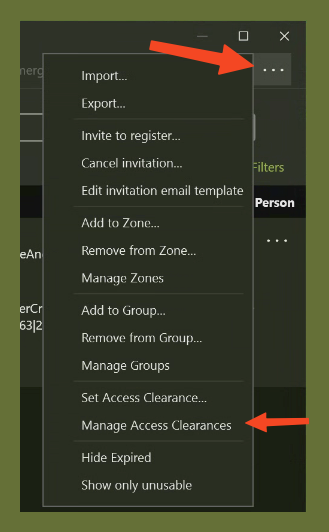
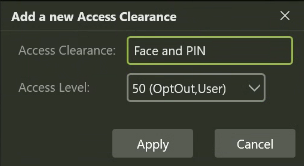
- Click "+" button in lower left to add a clearance.

- Provide a name and set Access Level to any value
- Once created, click "Edit Access Clearance Settings" and set Access Granted="Everywhere at any time" and Access Mode="Face Recognition and Keypad"
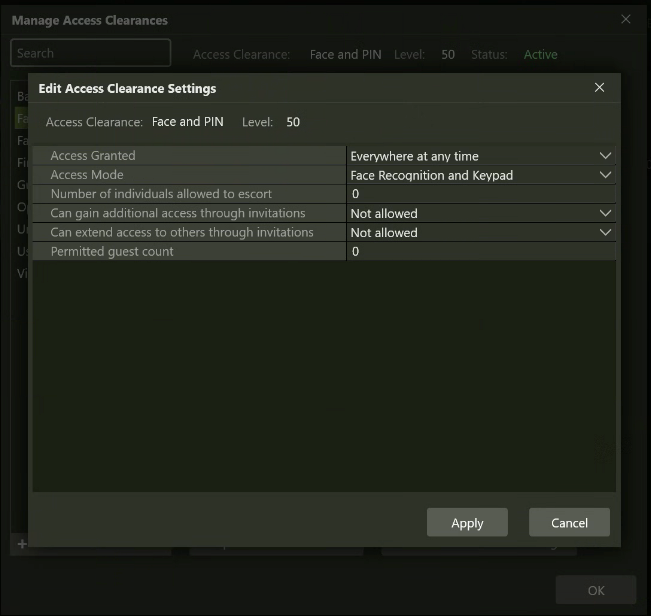
Note: Reader does not need to configured in any of the Keypad modes. It can be configured with Fae only auth by default and PIN PAD is invoked when a person that has the above Access Clearance appears in view of the camera.
Set Access Clearance on Person Record
- Open a person record and change Access Clearance to the new clearance crated above.
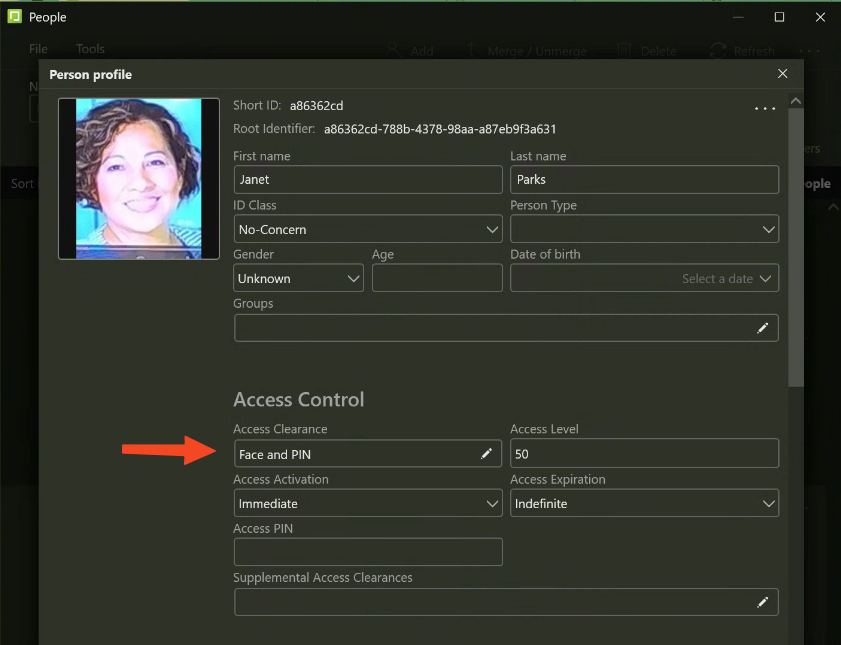
If you are not using two factor authentication in general, you can apply 2FA for just persons who you need to have the additional level of differentiation by putting those persons in a special Access Clearance group that requires one of the multi-factor authentication methods. Other person records belonging to an Access Clearance not requiring 2FA will be authenticated as normal.
About SAFR PACS Integrations
If SAFR person records are sync'ed from your access control system, then edits made to Access Clearance will be overwritten the next time that person is updated in the PACS or a full sync is performed. To avoid this, Opt-out should be enabled for those who require additional access clearance and a 2nd person record needs to be to SAFR directly with the person's credentials and PIN code.
Enrolling Twins
When twins are enrolled through your access control system, you will have 2 different person records created. But if you are enrolling twins by adding photos or directly from device, you may run into an issue where SAFR reports both faces as the same person. To add the 2nd person, you can override SAFR to create a new person record as described below.
Here is what you get when adding very similar face from “Add face” dialog. In this case “Add to current profile” means add the face to the new profile you have created (not the one that matches the face).
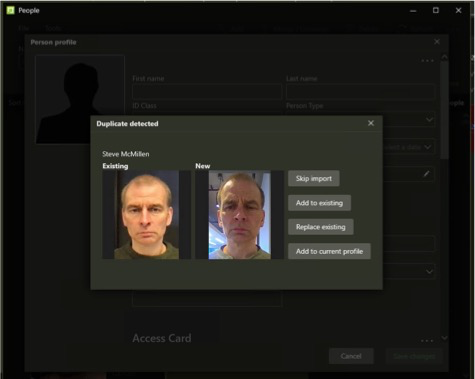
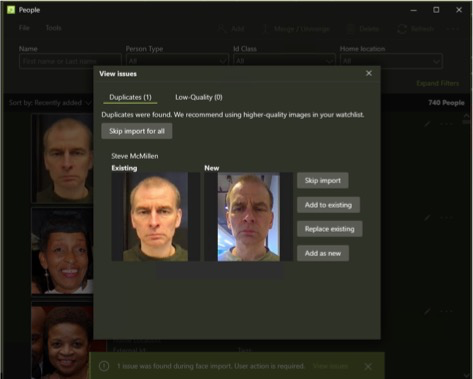
Here is what you get when adding very similar face from “Import…” dialog from “…” menu in upper right of person window. In this case “Add as new” means create new profile with this face.