
When running SAFR Platform inside a virtual machine or outdated CPU, the Face Recognition Service (Face Service) may fail to work.
Symptoms
Run 'check.bat' in C:\Program Files\RealNetworks\SAFR\bin
Face Recognition service will appear as offline as shown in SAFR Server Status:
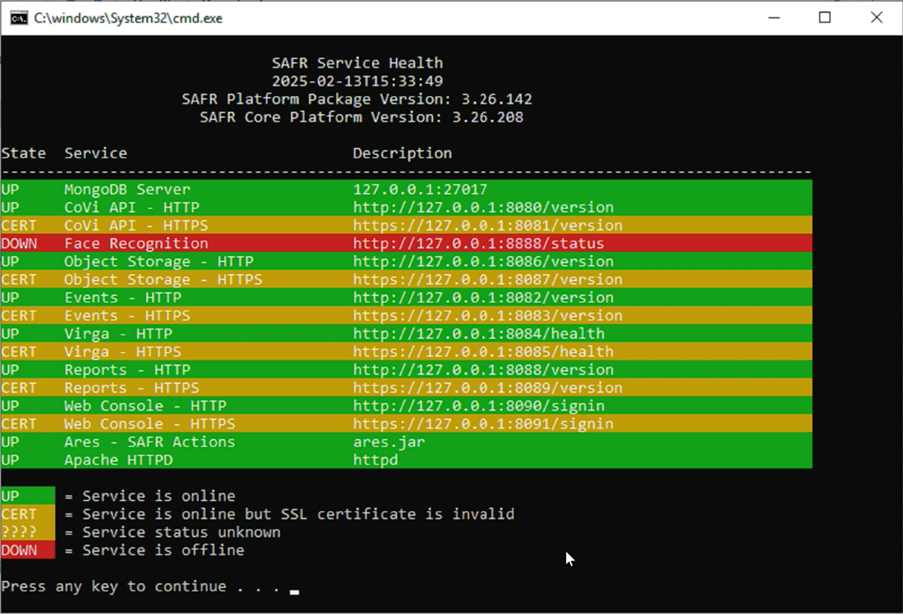
The following error will appear in Windows Application Event Log: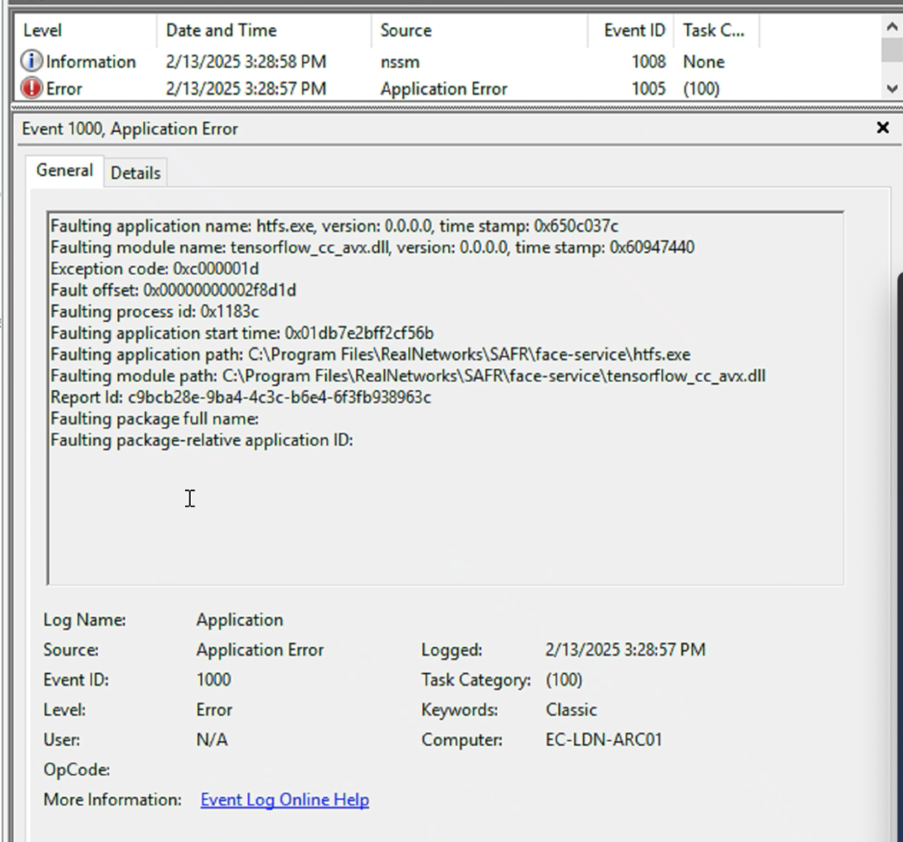
Why Does This Happen?
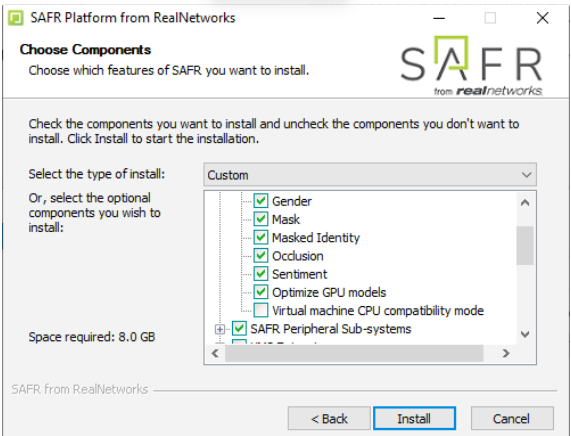
Virtual machines often limit CPU instruction sets to ensure compatibility across different hardware platforms. Unfortunately, Faceservice doesn’t support auto detection of supported instructions. This is why during the installation process you should check the Virtual Machine CPU Compatibility mode if you are installing SAFR platform in Virtual Enviroment. However, if you left it unchecked during the installation (like in the image below) the face recognition service might not work as expected. Luckily this there is an easy
How to Fix It
During installation
During installation of SAFR Platform, select "Virtual machine CPU compatibility mode" on the Chose Components screen of the installer as shown below:
If SAFR Platform is already installed
Go to C:\Program Files\RealNetworks\SAFR\face-service\
Right click anywhere and choose open in terminal. Then run the following command: vm_compatibility.bat enable
By ensuring CPU Compatibility Mode is enabled when needed, SAFR’s Face Recognition Service will run smoothly, even in virtual environments.