
WORK IN PROGRESS
This article explains how to process MP4 or other video files with Video Recognition Gateway (VIRGO) video feeds. While it's possible to process files in the Video File Analyzer window in the SAFR Desktop Client, it can be useful to process files in the background using VIRGO (available thru the Video Feeds window) for the following reasons:
- Processing a file in a loop for demo purpose
- Processing video files as fast as possible
- Processing video files on SAFR Platform for Linux
- Processing many files in parallel (future articles will demonstrate how to load many feeds quickly)
Play a video file in virgo
In this section, I show you how to play a video file as virgo feed, with SAFR Destkop. "SAFR Destkop Lite" doesn't have the virgo component, so you need to use "SAFR Desktop Full Edition".
1. Open SAFR Desktop Video Feed window.
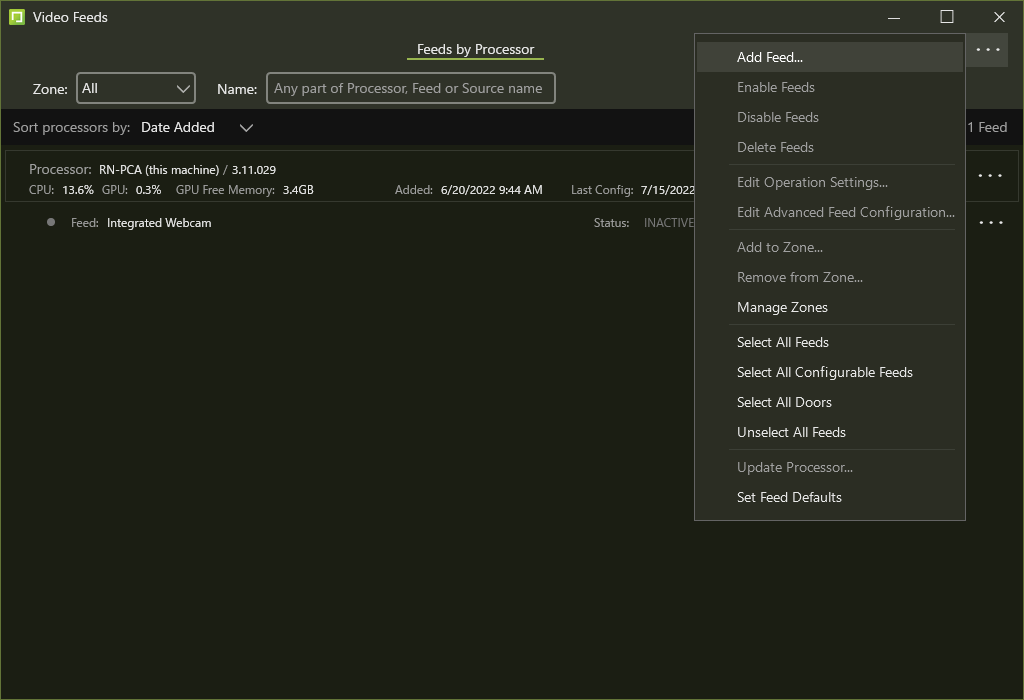
2. Click "Add Feed" menu from the top-right dots menu.
Then the "Add Feed" dialog box opens.
Configure "Feed Name", "Camera", "Mode". Fill in the video file path in "Camera" field. Click "Add" to add it to video feed.
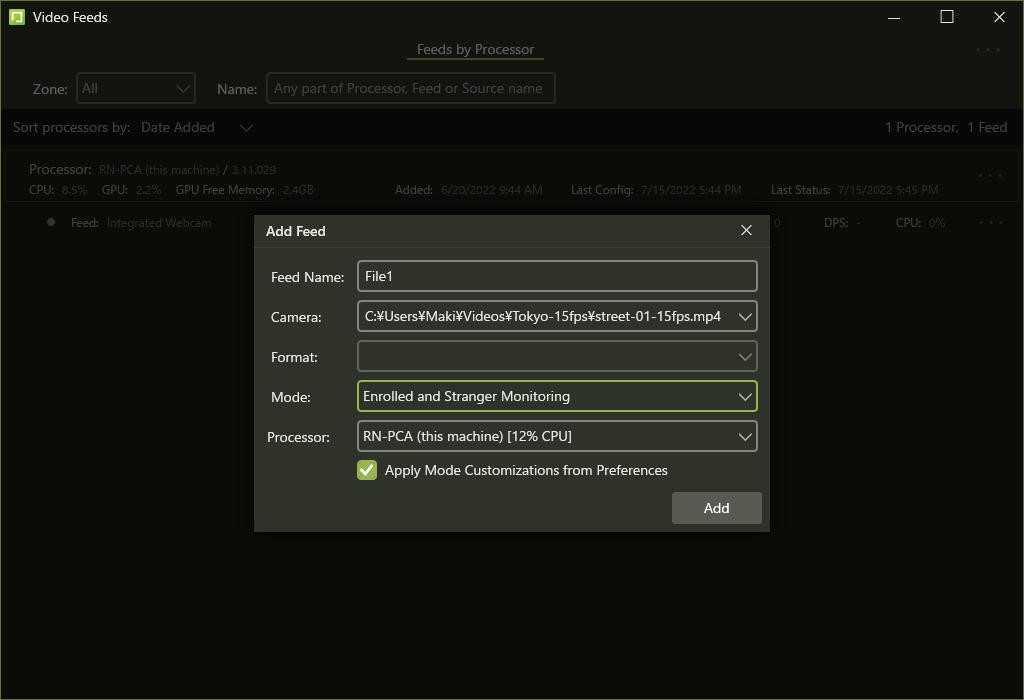
The file path (Camera) must be accessible from virgo. When you use virgo on Linux, you need to configure the virgo docker container to mount the host OS's filesystem. Please consult with SAFR Support for the instructions.
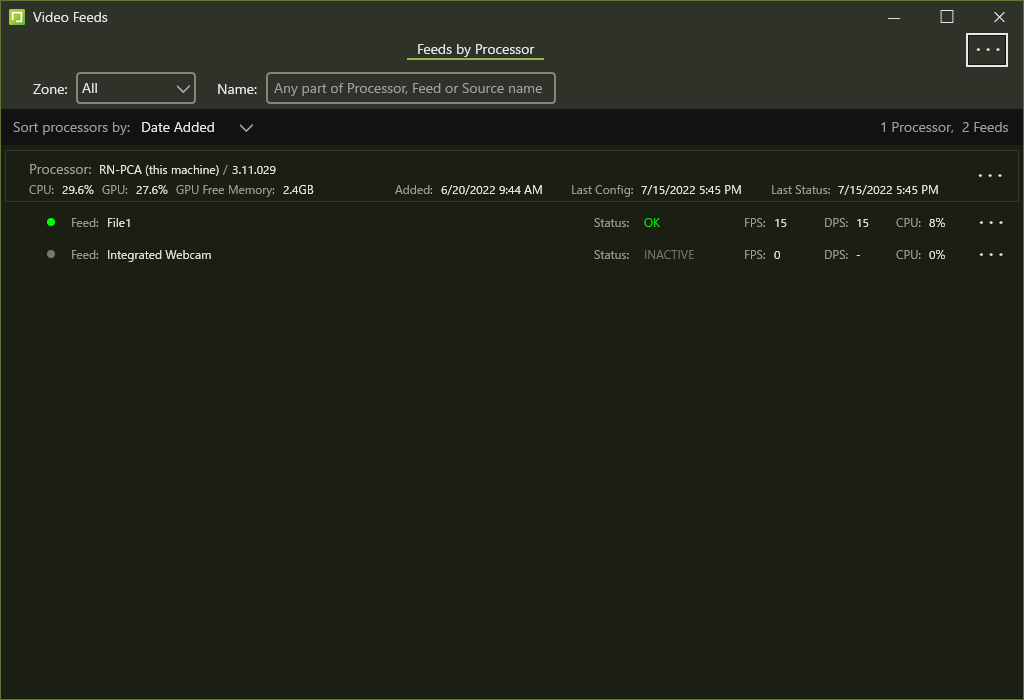
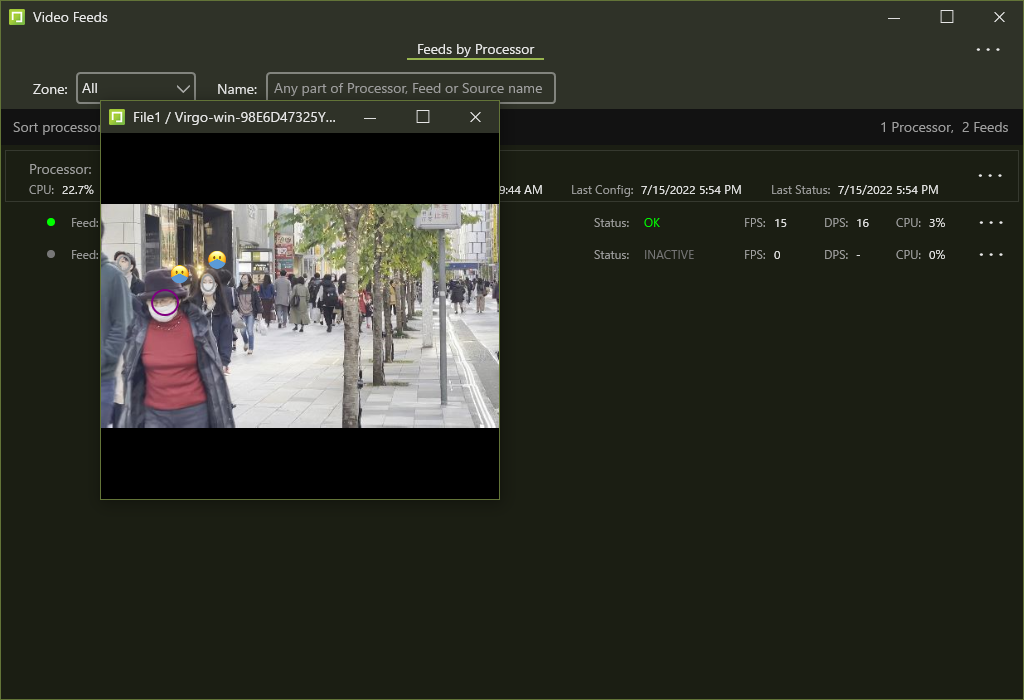
3. The feed with the video file starts.
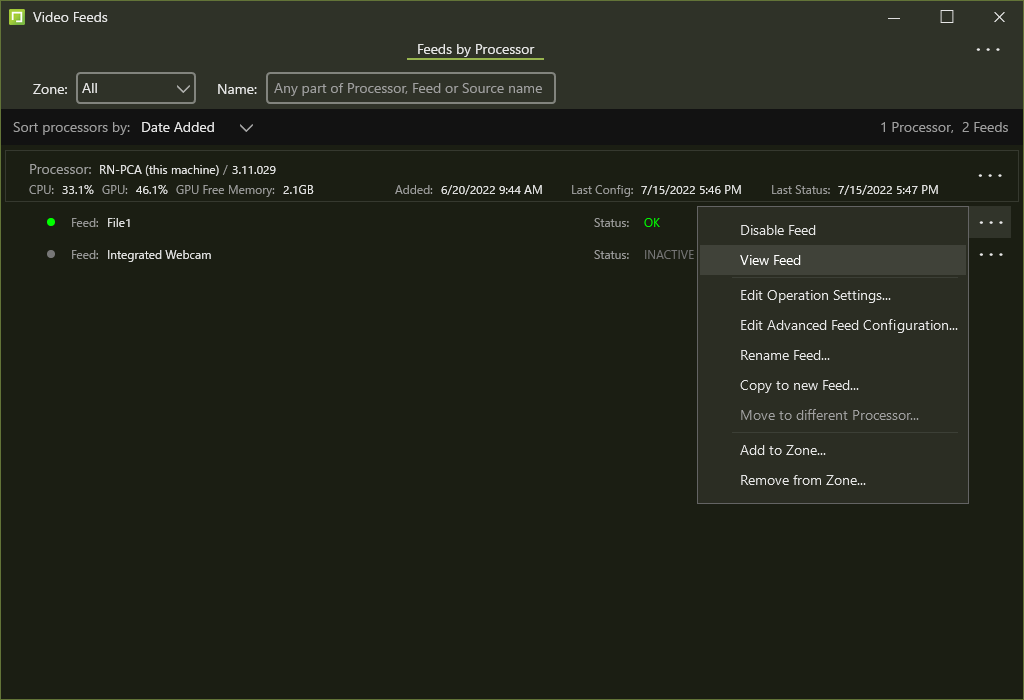
4. You can preview the feed from "View Feed" in the dots menu.
Play a video file repeatedly
By default, the video file feed will stop at the end of the video file. If you want to loop the video file, add "input.loop = True" parameter to the feed config.
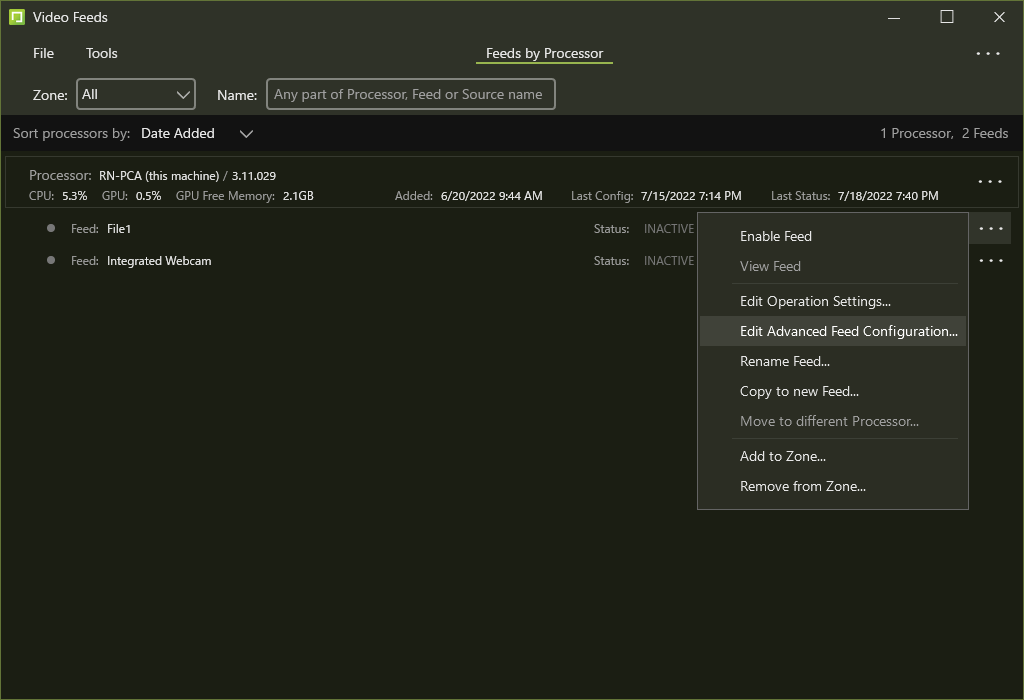
Select "Edit Advanced Feed Configuration..." from the dots menu.
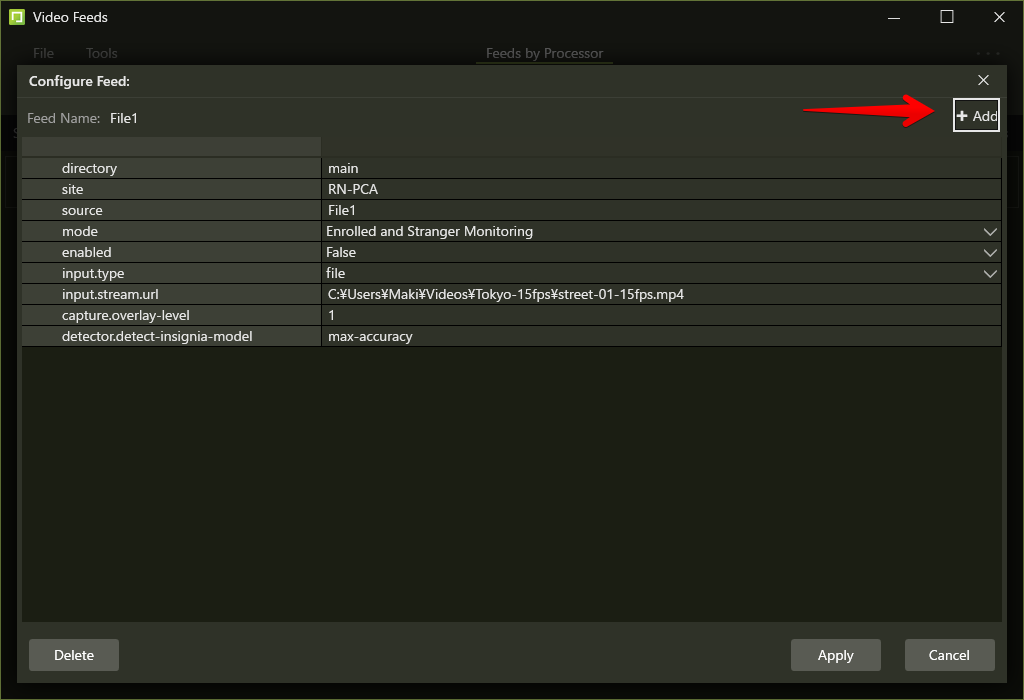
Click "+Add" to add a new attribute to the feed.
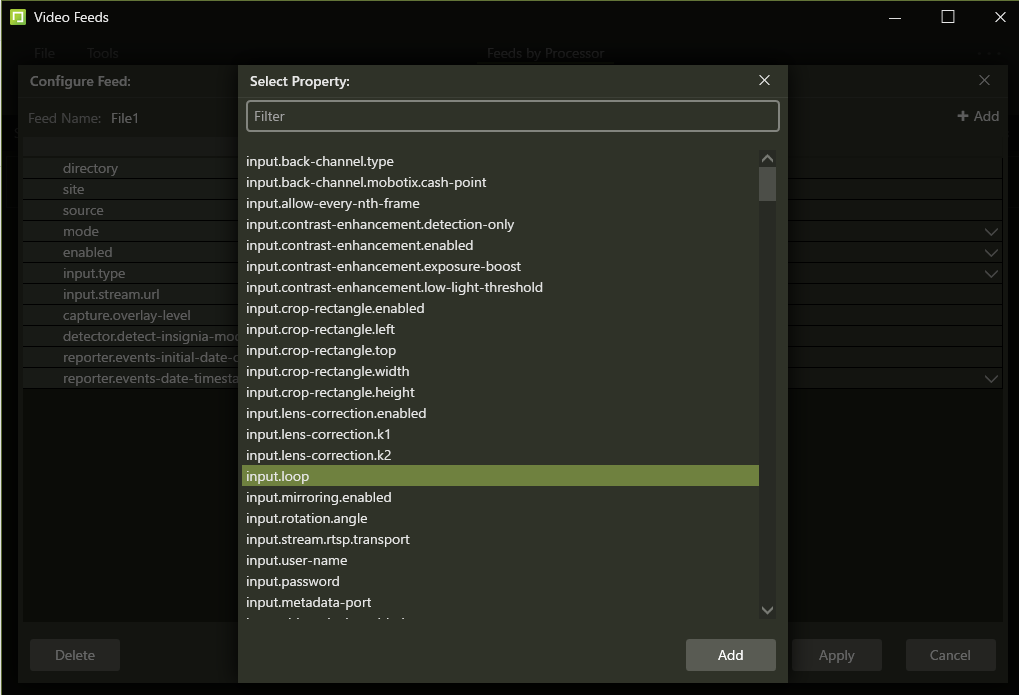
Select the "input.loop" attribute, and push "Add".
Configure input.loop to True.
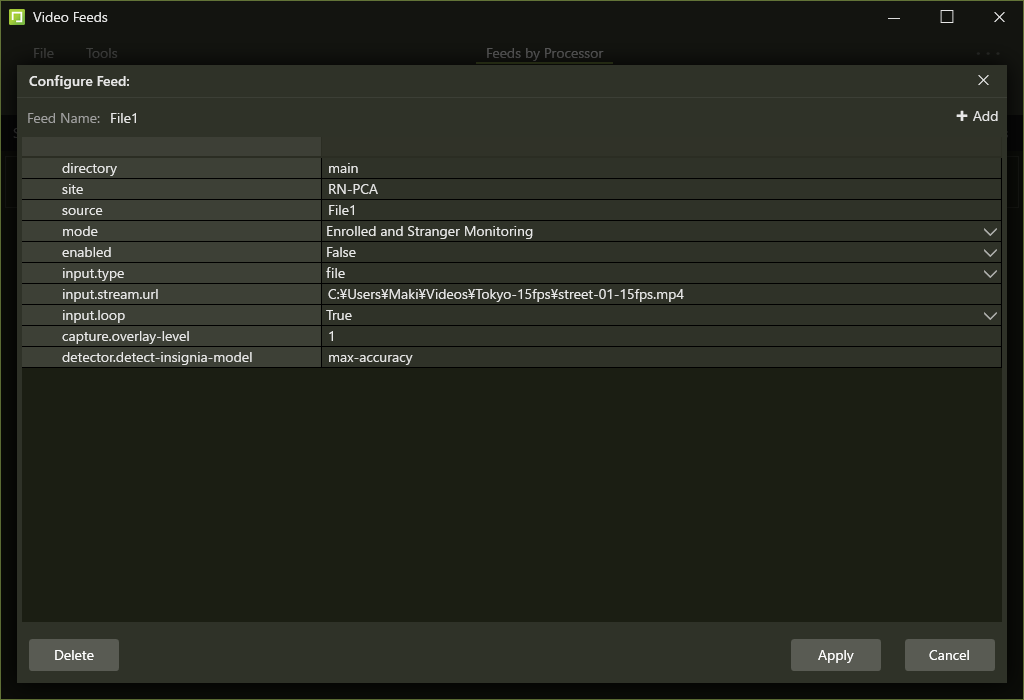
Click "Apply" to apply the change to the config. If you enable the feed next time, then it loop the video file forever.
Start a video feed with a specific timestamp
By default, the video feed starts as from actual (current) time you enabled the feed. If you want to start the video file as from specific time, configure
reporter.events-date-timestamps-enabled
and
reporter.events-initial-date-offset
.
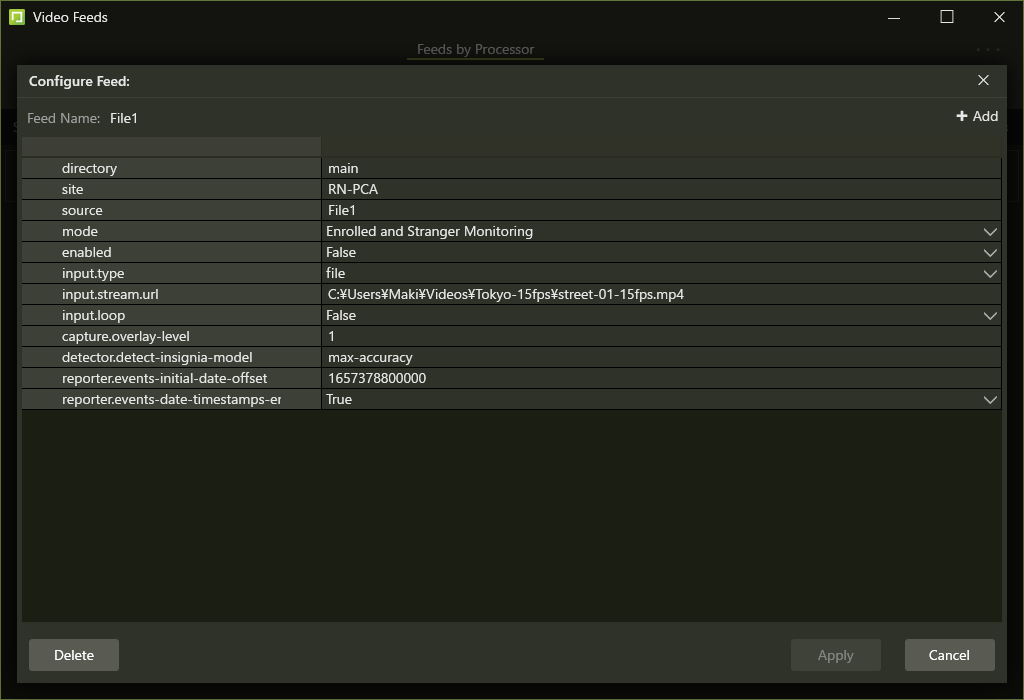
This initial date offset "1657378800" above means 10-JUL-2022 00:00:00 in the epoch time, in millisecond. So if you enable this feed, the feed plays video and generate events starting from 10-JUL-2022 00:00:00.
Processing a video file as fast as possible
To process the video file as fast as possible, configure input.video-clock.enabled parameter to False. Then the virgo processes the video file at the maximum speed.
Turn a Camera Feed into File Feed
If you want to process a video file with your fine tuned Camera Feed parameters, you can turn it into file feed with small changes on virgo parameters.
TBD
Configure Camera Feed Analyzer
Turn it to video feed
Update feed parameters to use a video file as input
input.stream.url
input.type
Processing multiple video files simultaneously
For more details, please refer to the following article.
https://safr-support.freshdesk.com/a/solutions/articles/69000283233
https://docs.real.com/products/lwp/Video_Feeds_Properties.html